Two-step verification
Your Permaura account can change every grant your gateway enforces, and on a hosted gateway it decides which phones may sign your approvals, so a password on its own is not enough to use it. Every account holds a strong factor, every sign-in asks for a second factor after the password unless that browser was trusted for 30 days, and anything that changes what your account or your gateway trusts asks you to confirm it's you again first.
You'll find all of it under Settings → Password & security (/settings/account/security).
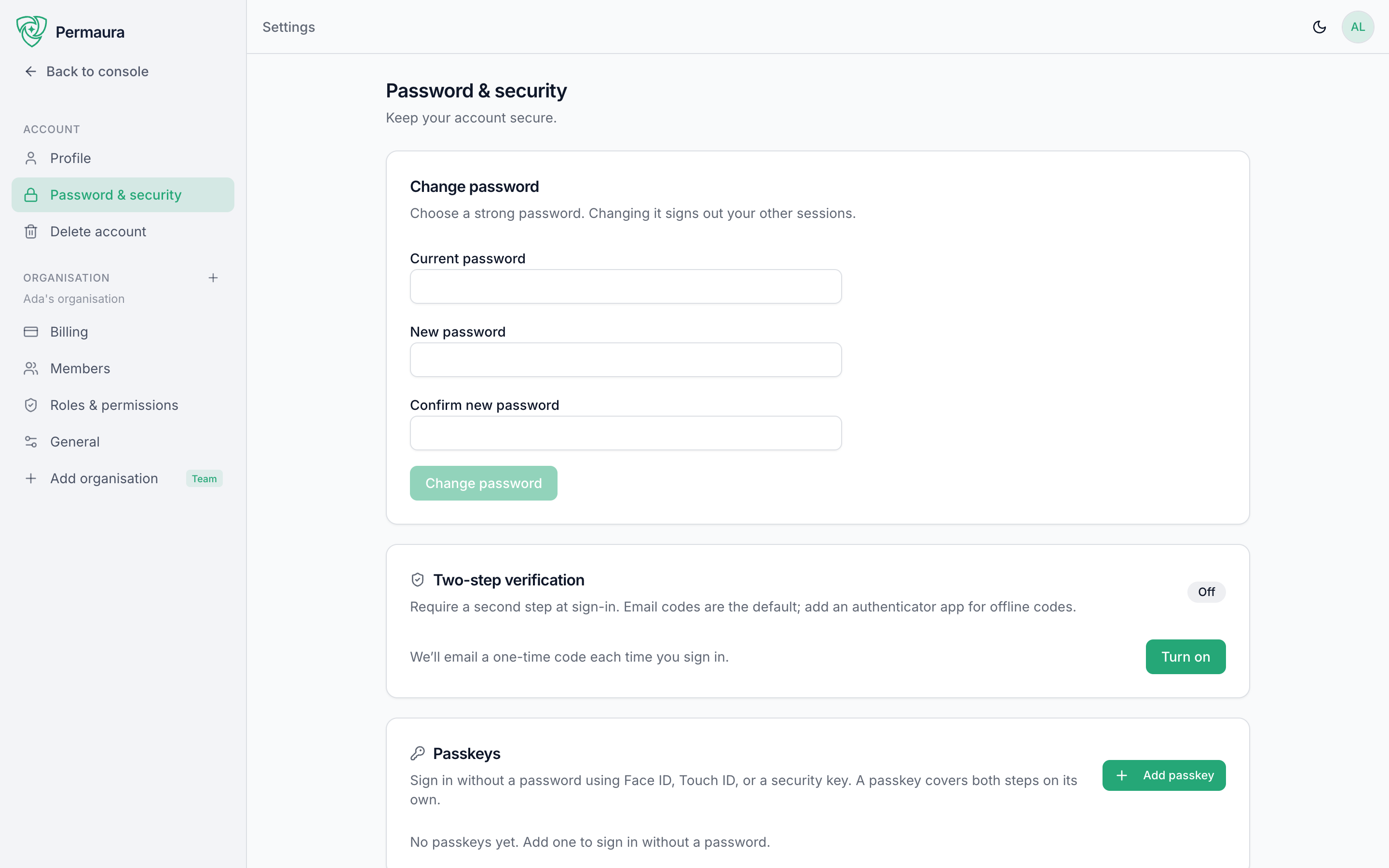
The strong factor every account holds
A strong factor is one of these three, and you can hold more than one:
- A passkey: Face ID, Touch ID, Windows Hello or a hardware security key. It's phishing-resistant, and there's nothing to type.
- An authenticator app: 1Password, Authy, Google Authenticator or any other app that shows a 6-digit code (TOTP). It works offline.
- The Permaura app on your phone, enrolled with Face ID or your fingerprint. The phone becomes your account's approver: it can confirm a sign-in or an action for you, and it won't do either without your face or fingerprint.
An emailed code is never a strong factor, because it only protects you as far as your inbox does. It still has a place further down the list of second factors, below.
Nothing in the console or the app works past sign-in until your account holds a strong factor. Straight after you sign up, the Secure your account page asks you to add one.
Adding a passkey
On Secure your account, or later under Password & security, choose Add a passkey and follow your device's prompt. You can register more than one (your laptop and your phone, say), and a passkey kept in iCloud Keychain, Google Password Manager or a password manager comes back on a new device signed in to the same account.
Adding an authenticator app
- Choose to set up an authenticator app.
- Scan the QR code (or copy the secret) into your app.
- Enter the 6-digit code it shows to confirm.
Adding the Permaura app
The Permaura iPhone app is on the App Store.
Sign in to the Permaura app on your phone. If your account has no strong factor yet, the app asks to secure it with this phone, and enrolling is one Face ID or fingerprint prompt. The phone makes a signing key that never leaves it and can't be used without your face or fingerprint (or, on a phone with neither set up, its passcode); Permaura keeps only the public half and checks every answer the phone sends against it.
Making the phone your account's approver is a different thing from pairing it as an approval device on a gateway. The first lets the phone confirm to permaura.com that it's you; the second lets it sign held actions on one gateway. The same phone can be both, and each is added and removed on its own.
Save your backup codes
When you add a strong factor and hold no unused backup codes, Permaura shows you a set, once. Save them somewhere that isn't the device you just enrolled, such as a password manager or a sheet of paper, because they are how you get back in when that device is gone. Each code works once.
You can replace the set under Password & security with Regenerate backup codes, which asks for your password and a second factor first. Your old codes stop working the moment the new ones are made.
What sign-in looks like
After your password, the Two-step verification screen (/login/2fa) asks for one second factor. It offers what your account has, in this order:
- Your passkey.
- Approve on your phone, if the Permaura app is your account's approver.
- Your authenticator app.
- An emailed code, sent to your account's address. It is not offered after a password reset until something stronger has confirmed it.
- A backup code, as the last resort.
Try another way moves between them. A passkey can also sign you in from the sign-in page without your password at all.
When you enter a code from your authenticator app or your email there, you can tick Trust this device for 30 days, and sign-in in that browser then skips the second factor. A password reset or a password change ends that trust in every browser at once, so each one asks for a second factor at its next sign-in.
Approving on your phone
The screen asking for the approval shows a two-digit number. Your phone is notified, and opening the request shows three numbers, which browser or device is asking, roughly where it is, and whether it's a sign-in or an action. Tap the number you can see on the other screen, then confirm with Face ID or your fingerprint, and the phone signs your answer. Tapping the wrong number denies the request, as does Deny. A request lasts two minutes and can be answered once.
The notification itself says only that something is waiting for you. A push carries no proof of who sent it, so the app fetches the request from permaura.com rather than trusting anything written in the notification.
When the phone that is your approver is also the one asking (you're signing in to the app on it, or confirming an action there), there is nothing to match: it asks for Face ID or your fingerprint on the spot.
Permaura only asks your phone to approve a sign-in after your password has been typed correctly, and only asks it to confirm an action for a session that is already signed in as you. Deny anything you didn't start, then change your password and check the sign-in factors listed under Password & security.
Changing the password stops every agent that signed in with your account from renewing its access, but the access it already holds keeps working at your gateway for up to 15 minutes, and an agent connected with a setup code is not affected at all. Remove any agent you don't recognize under Agents to cut it off at once.
Confirming it's you
Some actions change what your account or your gateway trusts, and an open session is not enough for those, however recent it is. Permaura asks you to confirm it's you, and for most of them any one of these does it on its own:
- Your passkey, with Face ID, Touch ID, Windows Hello or the security key's PIN. A passkey that can't check it's you that way won't confirm.
- Approving on your phone, if the Permaura app is your account's approver: a request you approve there by tapping the matching number, or a single Face ID or fingerprint prompt when you're already on that phone.
- Your password, unless it changed recently.
In the console the confirmation looks like the sign-in page: the password field, then, under an "or" divider, Use passkey and Approve on your phone for whichever of those your account holds. The Permaura app offers the same choice, with Face ID or your fingerprint first when the phone is your approver. It asks for less than a password sign-in does because the session you're confirming from already took more than a password to create.
Your password counts as recent when it was changed, reset or set in the last seven days, and a password you reset from your inbox also stays recent for as long as the emailed code is held back after it (see After a password reset). A recent password moves you on to a second screen, which asks for one more factor from the list sign-in uses, in the same order: your passkey, your phone, your authenticator app, an emailed code (not while it is held back after a reset), or a backup code as the last resort. That way a password someone has only just set is never enough by itself.
These actions ask for one of them:
- Pairing an approval device with a hosted gateway, the first one and every one after it.
- Removing an approval device from the console or the Permaura app, on a hosted gateway or one you run yourself with remote access configured, including Remove from organization, which asks once for every gateway it reaches.
- Lowering a hosted gateway's approval floor.
- Decommissioning a hosted gateway or destroying its vault, deleting a workspace or an organization, and exporting or importing a vault through permaura.com.
- Changing a gateway's remote access from the console: turning on a managed tunnel or renaming it, which reserves the name for the gateway's machine to finish, pausing it or deleting it; and setting or clearing a custom domain. The desktop app's Remote access card and
permaura remoteon the gateway's own machine do not ask. - Making a phone your account's approver or removing one, and removing a passkey while you still hold another.
A confirmation is short-lived and covers the action you asked for, so expect to be asked again if you come back to the same screen later. Permaura won't let you remove your last strong factor at all; add another first.
A gateway you run yourself on your own machine or server works as it always has. Pairing happens between your phone and the machine running the gateway, with nothing from permaura.com involved: the first device is trusted at that machine, and each one after it has to be confirmed by a device the gateway already trusts. Whoever is at the gateway's own machine, in the desktop app or with the permaura command, needs no confirmation from permaura.com; what stands behind changes made there is the machine itself and the devices the gateway already trusts. The console and the phone app speak for your account rather than for that machine, which is why removing a device from either of them still asks. On a gateway with no remote access configured the gateway cannot check that confirmation at all, so it refuses a removal from the console and you remove the device at its own machine instead, in the desktop app, or permaura approver revoke in a terminal there.
Your password and a second factor
A few actions change the ways back into your account or your gateway, so for these a passkey or your phone isn't enough on its own, and neither is your password. They ask for your password first, however long ago it changed, and then one more factor from the list sign-in uses, in the same order: your passkey, your phone, your authenticator app, an emailed code (not while it is held back after a reset), or a backup code as the last resort.
- Recovering a gateway through your account.
- From gateway 1.3.46, issuing a new set of recovery codes from the Permaura app for a gateway you run yourself.
- Regenerating backup codes.
- Turning off two-step verification, which removes emailed codes and your authenticator app.
- Removing your last passkey, or removing a phone when the only strong factor left after it would be a phone added in the last 24 hours.
- Adding a passkey, setting up or replacing your authenticator app, and showing its setup key or QR code again. Your first strong factor is the exception: an account that holds none yet adds it with the password alone.
An account with no password confirms these with two different methods instead: two of your passkey, your phone and your authenticator app, or one of them and a backup code. The same method twice counts once, and an emailed code doesn't count.
A phone that became your account's approver in the last 24 hours doesn't count as the second factor for these yet, so use another factor or wait a day.
Removing a passkey or a phone, and turning off two-step verification, go through one at a time, so if another of them is still going through, Permaura asks you to try again in a moment.
After a password reset
A reset link proves you can read your inbox, which is all an emailed code proves too, so a reset on its own doesn't restore full access. Until a passkey, an approval on your phone, your authenticator app or a backup code confirms it, Permaura won't accept an emailed code from your account, at sign-in or anywhere else it asks you to confirm it's you. Once one of those has confirmed it, the emailed code works again as before.
If you lose your phone or another factor
What gets you back in depends on what you still have. A second or replacement phone registers itself as your account's approver from the app's Account screen, after you confirm it's you if your account already holds a strong factor.
- If your passkey was synced through iCloud Keychain or Google Password Manager, it comes back on a new phone of the same kind once that phone is signed in to the same Apple or Google account. Sign in to Permaura with it, then remove the lost phone under Password & security.
- If you still know your password and haven't reset it, sign in with your password and an emailed code, add a replacement strong factor, then remove the lost phone under Password & security. Add first and remove second, because Permaura won't let you remove your last strong factor.
- If you had to reset your password, the emailed code is held back after a reset, so you need a backup code or another factor you still have. Use it to sign in, then add a replacement and remove the lost phone as above.
- If everything is gone (the device, the codes and any other factor), email support@permaura.com from the address on the account. We'll check that it's you through other means before changing anything, so expect it to take longer than you'd like; that wait is what stops someone else talking their way into your account.
A phone you lost may also be paired as an approval device on a gateway. Removing it from your account doesn't remove it there. See the lost-device playbook for a hosted gateway, and Unpair an approval device for the rest.
Verifying your email address is a good idea regardless: it's how an emailed code, account recovery and important notices reach you.