Step 1: Create your account
Permaura always starts with a free account. Registration is a one-time handshake that establishes your identity and entitlement. It is never a runtime dependency. Once you're activated, a local gateway keeps working fully offline; if Permaura's service is ever down, your agents keep running.
Sign up
Go to permaura.com/signup and enter a name, email, and a password of at least 8 characters. That's the whole form.
There is no sign-in with Google, GitHub or Apple, because getting back into a Permaura account has to be something we can verify ourselves, and an account that signs in through another provider is recovered on that provider's terms instead.
Click Create account and Permaura emails you a code. Enter it on the next page to confirm your email address and sign in (the email also has a link that does the same). You're then taken to Secure your account, the last step before the console.
Secure your account
Permaura holds the keys your agents act with, so a password on its own isn't enough to get in. Before the console opens, every account adds a strong factor, which is one of these:
- A passkey: Face ID, Touch ID, Windows Hello or a security key.
- An authenticator app that shows a 6-digit code (TOTP), such as 1Password or Google Authenticator.
- The Permaura app on your phone (the iPhone app is on the App Store). Sign in to the app and it offers to secure your account with Face ID or your fingerprint, which takes one prompt.
Straight after, Permaura shows you a set of backup codes, once. Save them somewhere other than the device you just enrolled, because they are how you get back in if that device is lost.
From then on every sign-in asks for a second factor after your password. Two-step verification has the detail, including which actions ask you to confirm it's you again.
What you get immediately
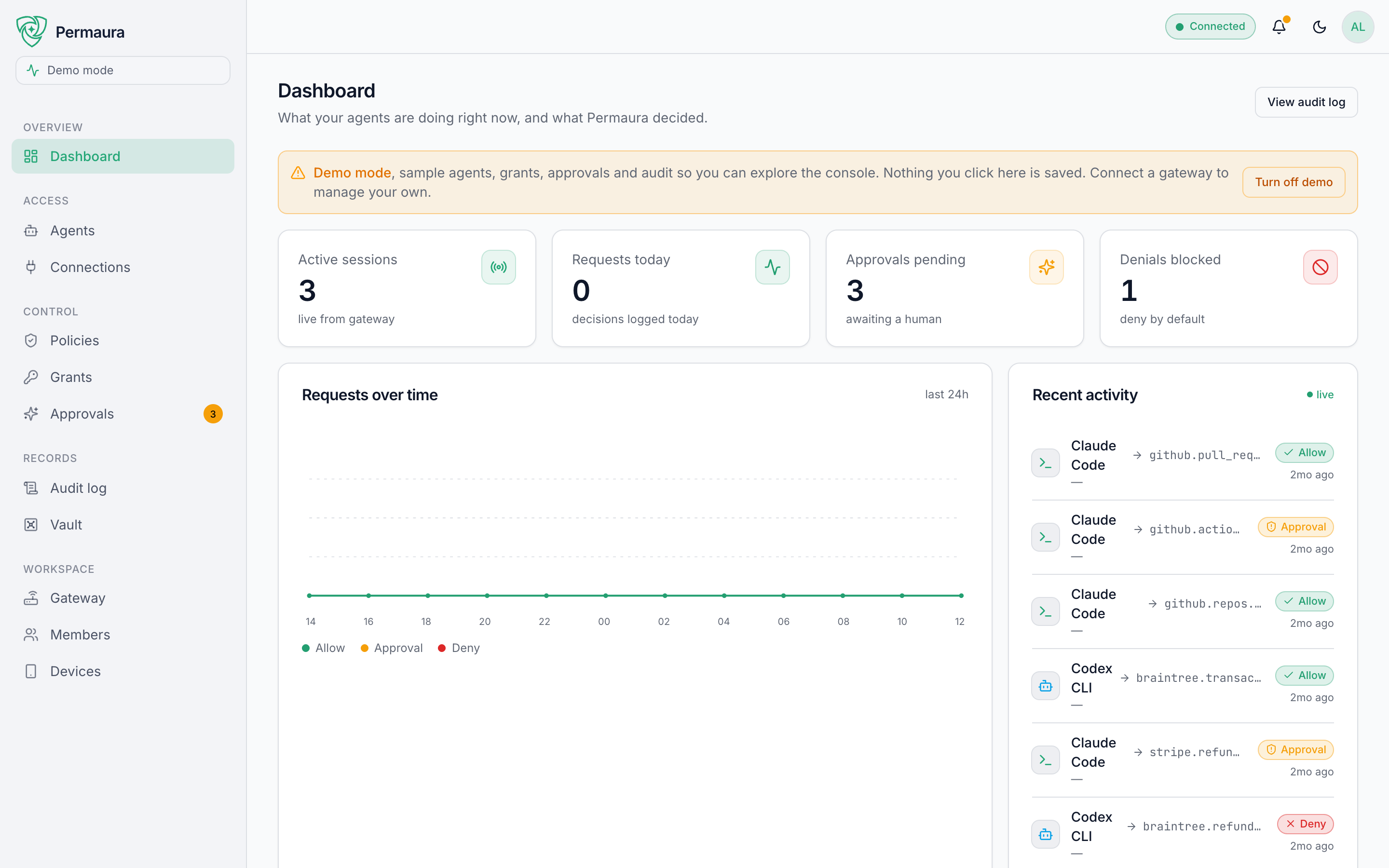
You're signed in, but you haven't connected anything yet, so the console greets you with a welcome dialog and, if you choose, fills every page with demo data so you can explore the whole product before pointing it at anything real.
The welcome dialog is also where the next step begins: connecting a gateway.
➡️ Continue to Step 2: Connect a gateway.