Step 2: Connect a gateway
The gateway is the program that holds your keys, enforces policy, and makes the actual calls. It's a single self-contained binary. Connecting one is what turns the demo console into your console.
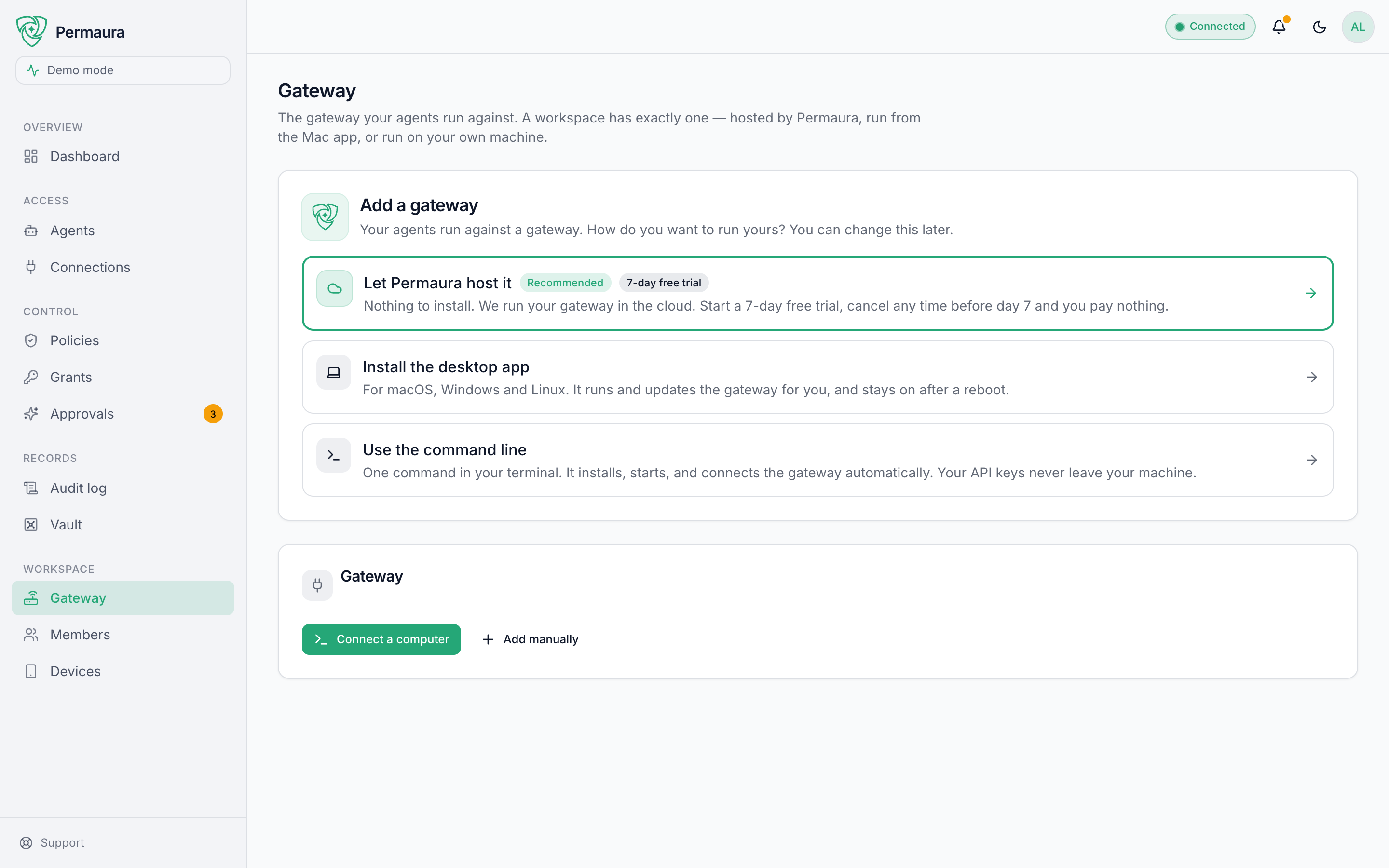
As soon as you sign up, the welcome dialog offers three ways to get a gateway running:
| Choice | Best for | Where it runs |
|---|---|---|
| Let Permaura host it | The quickest start, always reachable, nothing to install | Permaura's cloud (hosted) |
| Install the desktop app | A local gateway your computer supervises for you, on macOS, Windows or Linux | Your machine (local) |
| Use the command line | Power users, servers, headless boxes | Wherever you run the command |
Not ready? "I'll set this up later" drops you into the console, and "View the demo" fills it with sample data so you can look around first.
The same three options live on the Gateway settings page (Settings → Gateway), so you can start or change your gateway at any time:
The desktop app and the command line run the same gateway
Two of those choices put a gateway on your own machine, and it is worth being explicit that they are not two different products. There is one permaura-gateway binary. The desktop app does not contain a second, cut-down version of it: it ships that same binary and runs it for you, on the same 127.0.0.1:7376 and against the same local database as a gateway you start from the terminal. What you get for installing the app is a supervisor, not a different gateway:
- It starts the gateway and keeps it running, at login if you ask it to, and again after a crash or a reboot, so there is no terminal window you have to leave open.
- It updates the gateway for you, verifying each build against Permaura's signed release manifest before swapping it in.
- It adopts a gateway that is already running rather than starting a second one. If you installed from the terminal first and then install the app, the app takes over supervising the gateway you already have; your connections, grants and audit log are exactly where you left them.
- It approves things. The app is also an approval device: a held request can be released from the menu bar or system tray, confirmed with Touch ID on a Mac. See Approvals.
So the choice between the app and the command line is a choice about who keeps the gateway alive, not about which gateway you get. Install the app on a laptop you use; use the command line on a server, a headless box, or anywhere you would rather manage the process yourself. The app is available for macOS, Windows and Linux at permaura.com/download.
The macOS app is signed and notarized. The Windows and Linux builds are not yet, so Windows SmartScreen will warn you that the publisher is unknown. Choose More info, then Run anyway. Signed builds are coming. Gateway updates are signature-verified either way.
Auto-pairing, in one sentence
However you install it, the signed-in console mints a one-time pairing code (short-lived, single-use). The installer redeems it as the gateway starts, which registers the gateway to your account. You never copy or paste a URL or a token: the console notices the new gateway and goes live on its own.
Run it from the command line
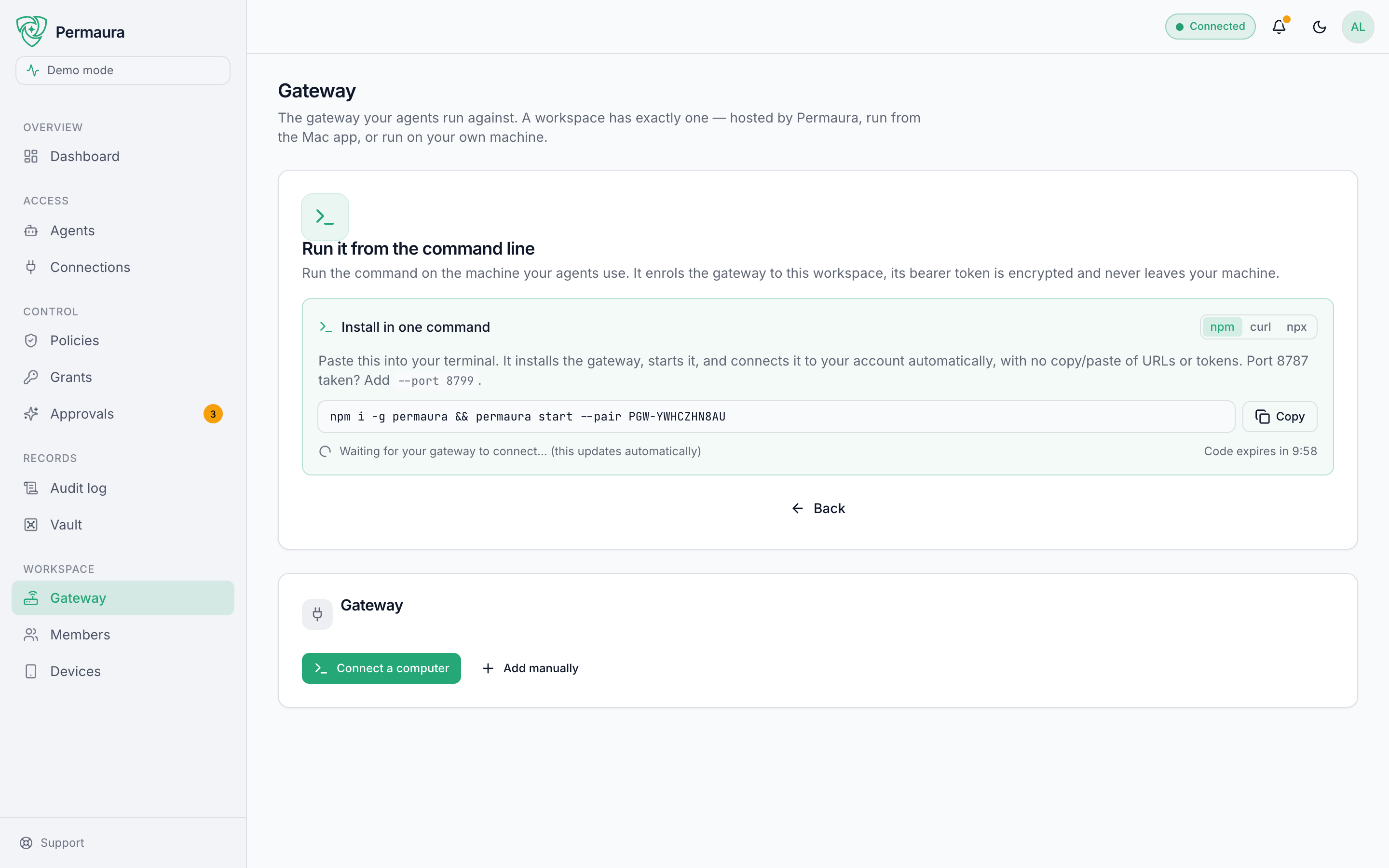
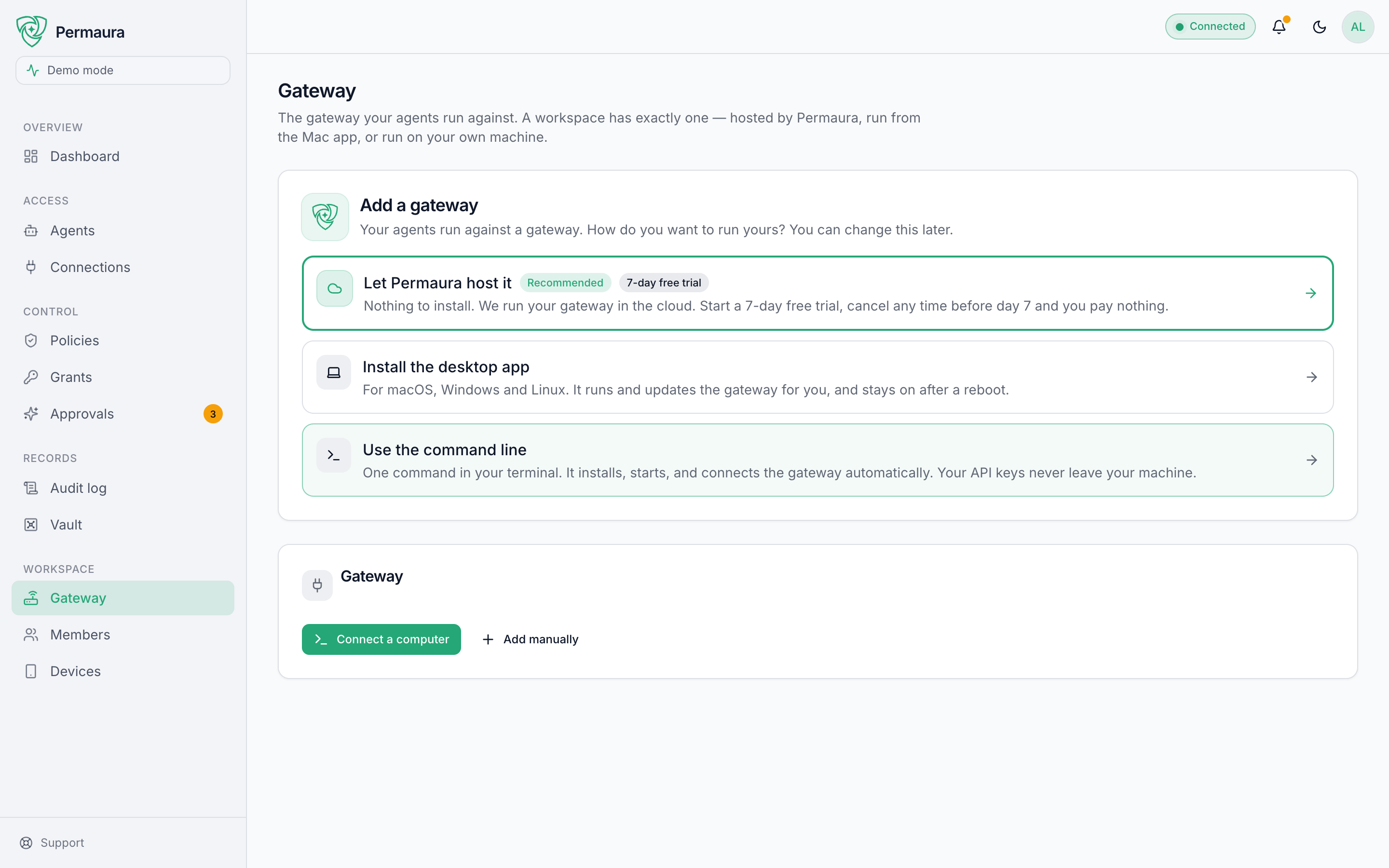
Choosing Use the command line shows a ready-to-run command with your pairing code already filled in. Pick whichever you prefer:
- npm (recommended)
- curl (no Node)
- npx (nothing installed)
npm
If you have Node, install it once and permaura is on your PATH for good:
npm i -g permaura
PERMAURA_PAIR_CODE=PGW-TF9YZJWF4V permaura start
On Windows, set the code the way your shell does, then start: $env:PERMAURA_PAIR_CODE = "PGW-TF9YZJWF4V"; permaura start in PowerShell, or set "PERMAURA_PAIR_CODE=PGW-TF9YZJWF4V" && permaura start in Command Prompt. The code stays in the environment rather than in the process list.
Every command after this is just permaura: permaura status, permaura stop, permaura grant ..., on macOS, Linux and Windows alike.
Every run checks for a newer gateway and verifies it against Permaura's signed release manifest before installing it, so the gateway stays current on its own. The launcher is npm's, so refresh that occasionally with npm update -g permaura. See the gateway package for its flags and where it puts things.
curl
No Node on the machine, or you want the gateway to come back after a reboot. Copy the command and paste it into your terminal:
curl -fsSL https://permaura.com/install | PERMAURA_PAIR_CODE=PGW-VUZFQ3BPMX sh
It downloads the gateway, starts it on 127.0.0.1:7376, and pairs it to your account. The code is filled in for you; the one above is an example, and yours is unique and lives for a few minutes. It goes in PERMAURA_PAIR_CODE rather than after a flag because every account on the machine can read a command's arguments in the process list, and the environment only you and root can. If it cannot pair, it ends by saying where the gateway's operator token is stored and how to read it, rather than printing the token.
Already using port 7376 for something else? Add --port:
curl -fsSL https://permaura.com/install | PERMAURA_PAIR_CODE=PGW-VUZFQ3BPMX sh -s -- --port 8799
Installing as root through sudo? Export the code first and let sudo keep it, since sudo VAR=value would put it back on a command line:
export PERMAURA_PAIR_CODE=PGW-VUZFQ3BPMX
curl -fsSL https://permaura.com/install | sudo --preserve-env=PERMAURA_PAIR_CODE sh
On Linux with systemd, an install run as root gives the gateway its own permaura account; see What Permaura protects for what that changes.
npx
For a one-off, or a machine you will not keep. Same outcome as the other two, with nothing left on your PATH afterwards:
PERMAURA_PAIR_CODE=PGW-TF9YZJWF4V npx -y permaura start
On Windows: $env:PERMAURA_PAIR_CODE = "PGW-TF9YZJWF4V"; npx -y permaura start in PowerShell, or set "PERMAURA_PAIR_CODE=PGW-TF9YZJWF4V" && npx -y permaura start in Command Prompt.
The -y answers npm's one-time "install this package?" prompt for you, so nothing stalls waiting on a keypress. Note that npx resolves the package from wherever you run it, so a directory that happens to contain a package.json and a node_modules will make it slow.
The pairing code has a live countdown; if it lapses before you run the command, the dialog mints a fresh one automatically.
The gateway runs on macOS, Linux and Windows (Intel and Apple silicon alike). npm i -g permaura covers all three; the curl one-liner covers macOS and Linux. Prefer nothing installed at all? Choose Let Permaura host it.
A gateway on a cheap cloud VM is always on and reachable from anywhere, with no tunnel and no paid plan. It needs a couple of things this page does not cover, chiefly TLS in front of it, since the gateway cannot terminate TLS itself. Self-host on a cloud VM walks through the whole path.
npm and npx both check for a newer gateway on every run and install it. The curl one-liner pins a fixed release and never upgrades itself, which is what makes it reproducible, but it also means a gateway installed that way stays on whatever version was current the day you ran it.
Two consequences worth knowing:
- The pinned release the installer hands out can lag the latest gateway. Check with
curl -s http://127.0.0.1:7376/health | jq .versionagainst the npm package. - To update a
curl-installed gateway, runpermaura upgrade. It verifies the new binary against the signed release manifest, swaps it in, and restarts whatever is running the gateway, because replacing the file alone leaves the live process serving the old code. Use--no-restartto stage it for a maintenance window instead. Re-running the one-liner does the same and additionally rewrites a systemd unit or launchd agent written by an older installer, so reach for it after an install-time change rather than for a routine update. - A gateway running as its own
permauraaccount (the Linux root install) cannot usepermaura upgrade: its binary belongs to root. Update it withsudo sh -c "curl -fsSL https://permaura.com/install | sh -s -- --update". The installer prints the update command that fits the install it made. - The one-liner refuses to replace a gateway with an older release than the one installed, which is what a lagging pinned release would otherwise do after a
permaura upgrade. Add--allow-downgradeif going back is what you meant.
If you would rather not think about it, use the npm tab: the gateway keeps itself current, and each binary is verified against Permaura's signed release manifest before it is swapped in. One thing npm does not update on its own is the launcher that does the checking, so run npm update -g permaura now and again.
Already have a gateway running?
If you started a gateway some other way and just want to point the console at a specific address, open Settings → Gateway and use the Advanced section to set the browser URL your console should read from (for example http://127.0.0.1:8799).
Permaura keeps a credential for a self-run gateway only while the gateway has no public URL, sealed with AES-256-GCM and stored apart from the gateway record. Before gateway 1.3.46 it is a copy of the gateway's operator token. On 1.3.46, or from a desktop app older than 1.4.22, linking hands permaura.com the operator token, and the gateway then replaces that copy with a console session it mints for permaura.com and keeps current on its own. On 1.3.46 the gateway rotates operator.token once permaura.com has accepted the console session, so the copy it handed over stops working two minutes later; if permaura.com refuses the console session, that copy stays valid until it expires, at most twelve hours. From 1.3.47 the rotation runs on the gateway's own clock, at its first re-seal pass after the pairing, within about a minute of it and before the console session is offered, so the copy stops working two minutes later whether permaura.com accepts, refuses or never answers. Also from 1.3.47, permaura pair and permaura start --pair hand permaura.com no operator token at all, and from desktop 1.4.22 neither does the desktop app's pairing: a gateway with no public URL seals permaura.com a console session of its own within a re-seal pass instead. An older desktop app's pairing still hands the token over, and if permaura.com answers that pairing without completing the link, the gateway never learns of the hand-over and the copy stays valid until it expires or the gateway next starts with a public URL. Giving the gateway a public URL deletes the copy. Which credential a console request carries depends on how the console reaches the gateway:
- Through permaura.com (a hosted gateway, or a self-run one with a public URL): a server-side proxy signs each request with a short-lived credential minted for the gateway's owner, the account it is bound to, naming you as the person acting when that is someone else, and the gateway verifies it itself. If permaura.com cannot mint one, because nothing binds the gateway to an owner or signing fails, the request fails with an error that says so; the proxy never sends a stored operator token in its place. No gateway token reaches the browser.
- Directly from your browser (a gateway on your own machine with no public address): there is nothing to mint, so Permaura hands the sealed copy only to the browser of the owner who linked the gateway, and the browser sends it only to a listener that has first proved it already holds that token. If Permaura holds no copy, for instance just after the gateway's public URL was taken away, the console says so. A gateway on 1.3.46 or later hands over a fresh one within about 15 minutes, or when it next starts; an older gateway never does, so upgrade the gateway to 1.3.46 and restart it.
The console waits, then connects itself
Whichever method you pick, the connect card polls: "Waiting for your gateway to connect…". The moment your gateway registers, it flips to a green "Gateway connected" and the page refreshes on its own. There's no button to press.
Nothing showing up? Troubleshooting covers expired codes, port clashes, and a gateway the console can't see.
➡️ Continue to Step 3: Go live.