Step 3: Go live
Once a gateway is connected, the console stops showing samples and starts showing your agents, connections, grants, approvals, and audit trail.
Demo mode → your data
Demo mode is an explicit choice you make once per workspace. While it's on, every page carries a "Demo mode" note and a "Connect a gateway to go live" prompt. It's a safe sandbox: every action works, but nothing is written and nothing is real.
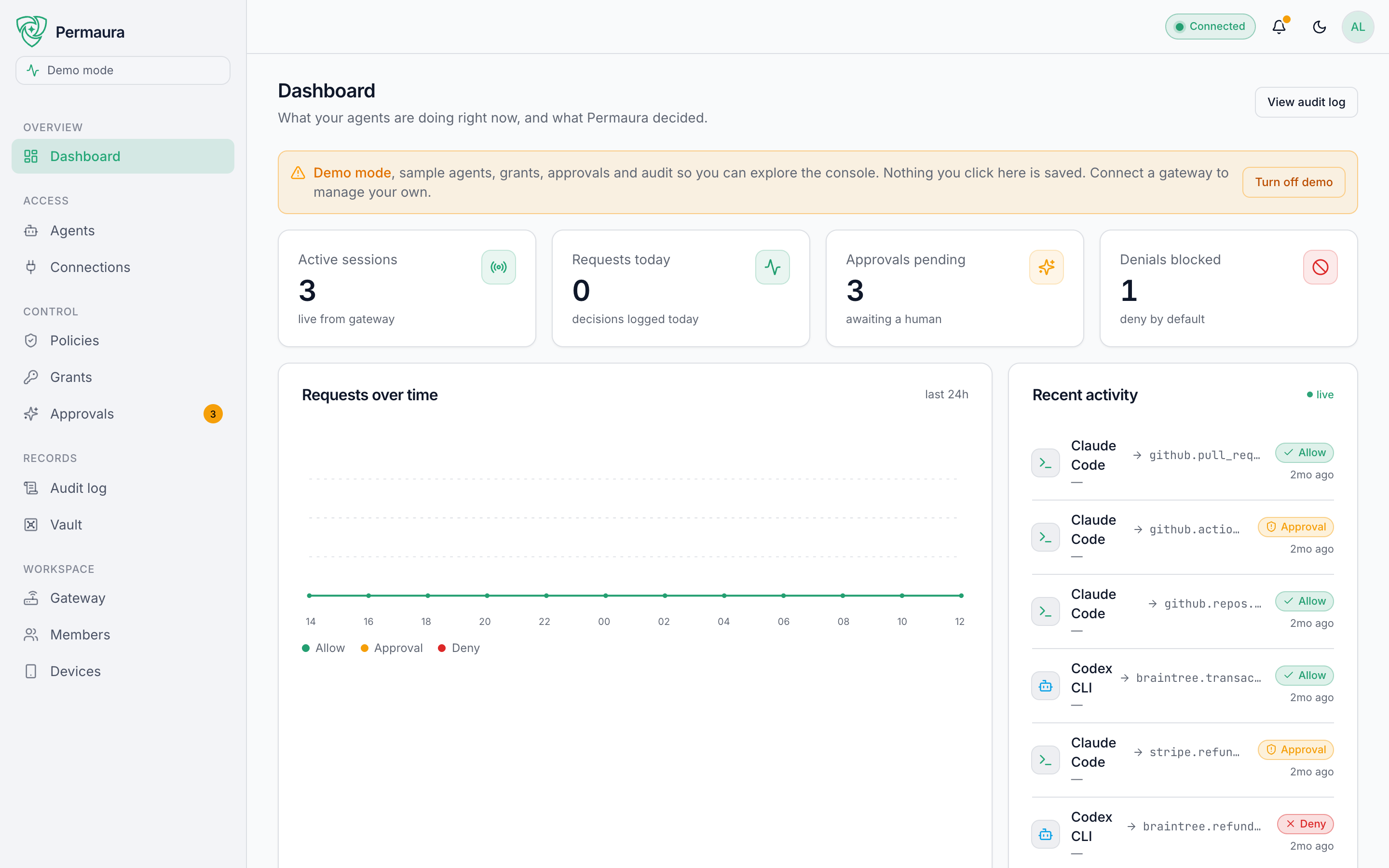
When your gateway registers, the demo banner disappears and the same pages re-render from your gateway's real state (a clean, empty console you fill with your own connections and grants). Nothing about the layout changes; what you explored in the demo is exactly what you'll operate live.
How the console talks to your gateway
It depends on where the gateway runs, which lines up with where your gateway runs:
- A remote or hosted gateway is reached through a same-origin server-side proxy (
/api/gw). Your browser sends requests to Permaura; the server signs each one with a short-lived credential minted for the gateway's owner, naming you as the person acting when that is someone else, and forwards it; the gateway verifies that credential itself. If one cannot be minted, the request fails with an error that says so: the server never sends a stored operator token in its place, and Permaura keeps no copy of the operator token for a gateway with a public URL. No gateway token touches the browser. - A local gateway on
127.0.0.1can't be reached by a cloud server, so the browser talks to it directly, with the credential Permaura keeps for it (the gateway's operator token, or from gateway 1.3.46 a console session the gateway mints for this): Permaura hands that only to the owner who linked the gateway, and the browser sends it only once the gateway has proved it already holds it. This works because the gateway allows the console's origin (https://permaura.com) cross-origin, with Private Network Access enabled, and browsers allowhttps://pages to reachhttp://localhost. The status may read "unverified" (Permaura's servers can't ping your loopback to confirm it) even though it's live in your browser.
For a gateway on your own machine, unverified just means the cloud couldn't independently reach it, not that anything is wrong. Your console is reading live data directly from the gateway.
You're live
That's the core loop: create an account → connect a gateway → go live. From here you'll add a connection, connect an agent, and grant it access. The Console tour walks through every page.
Still seeing sample data, or a gateway stuck on "offline"? See Troubleshooting.
➡️ Continue to Step 4: Add a connection.