Step 6: Grant access
You have a connection and an approved agent. Right now the agent can do nothing: Permaura is deny-by-default. Two objects turn that into "may do exactly this": a policy and a grant. (See the four objects.)
1. Write a policy
A policy is a reusable rule for one connection: three lists of actions.
- Allow: may run.
- Needs approval: runs only after a human says yes (see Approvals).
- Deny: never runs, even if something else would allow it.
Open Control → Policies and create one, scoped to the connection you added. For a coding agent on a GitHub connection you might allow github.pull_requests.create and github.issues.comment, put github.actions.deploy behind needs approval, and deny anything that deletes.
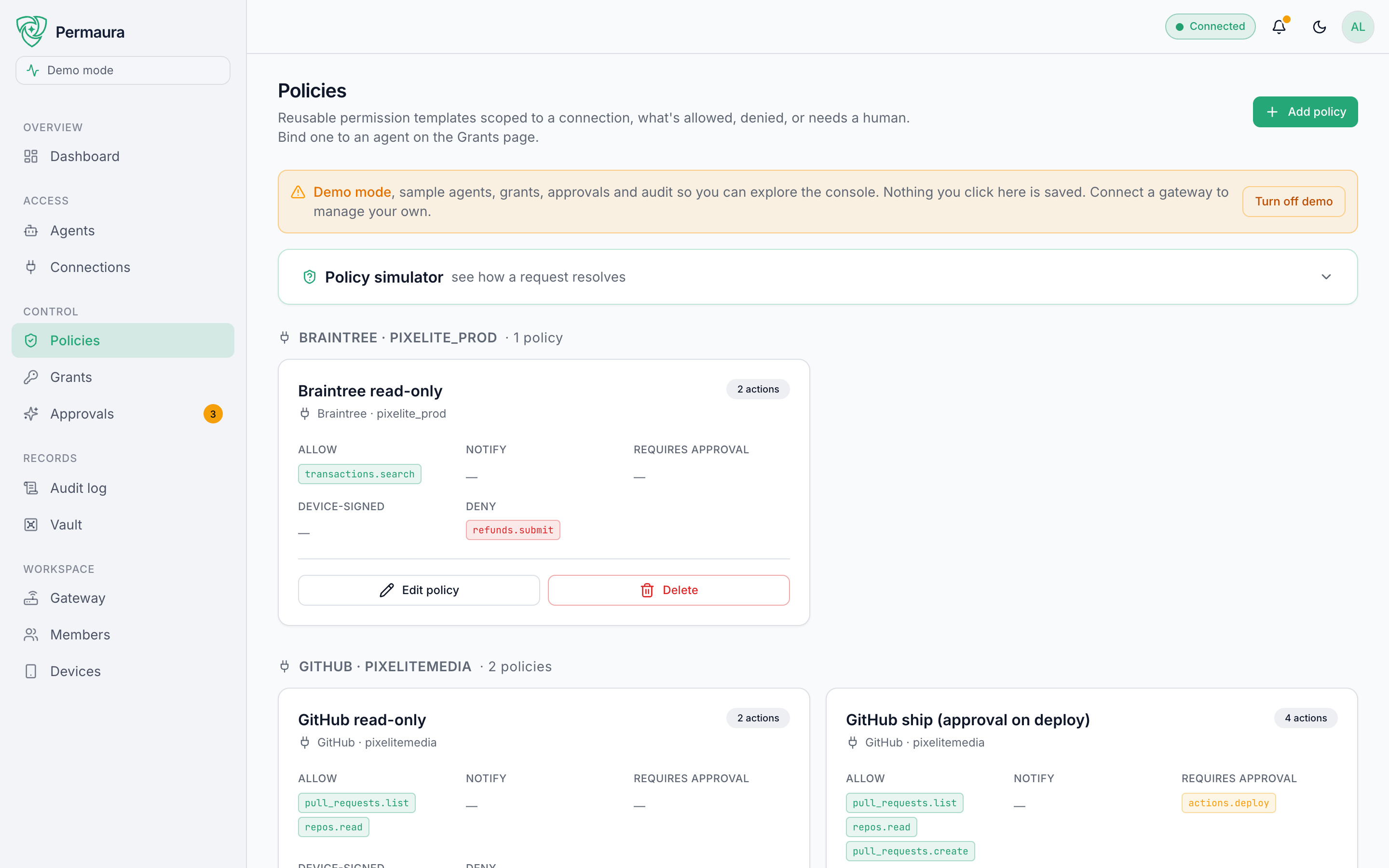
A policy names no agent. It's a template you can reuse across as many agents as you like.
2. Bind it with a grant
A grant is what actually hands out access: it binds one or more policies to one or more agents.
Open Control → Grants and create one. A grant carries:
- the policies it applies (which may span several connections),
- the agents it targets: specific ones, or all agents,
- a budget: an optional cap on calls per day, week, month, or overall (rolling windows: the last 24 hours, 7 days, or 30 days, not calendar resets),
- an expiry: an optional date after which it stops,
- an enabled/paused switch you can flip any time.
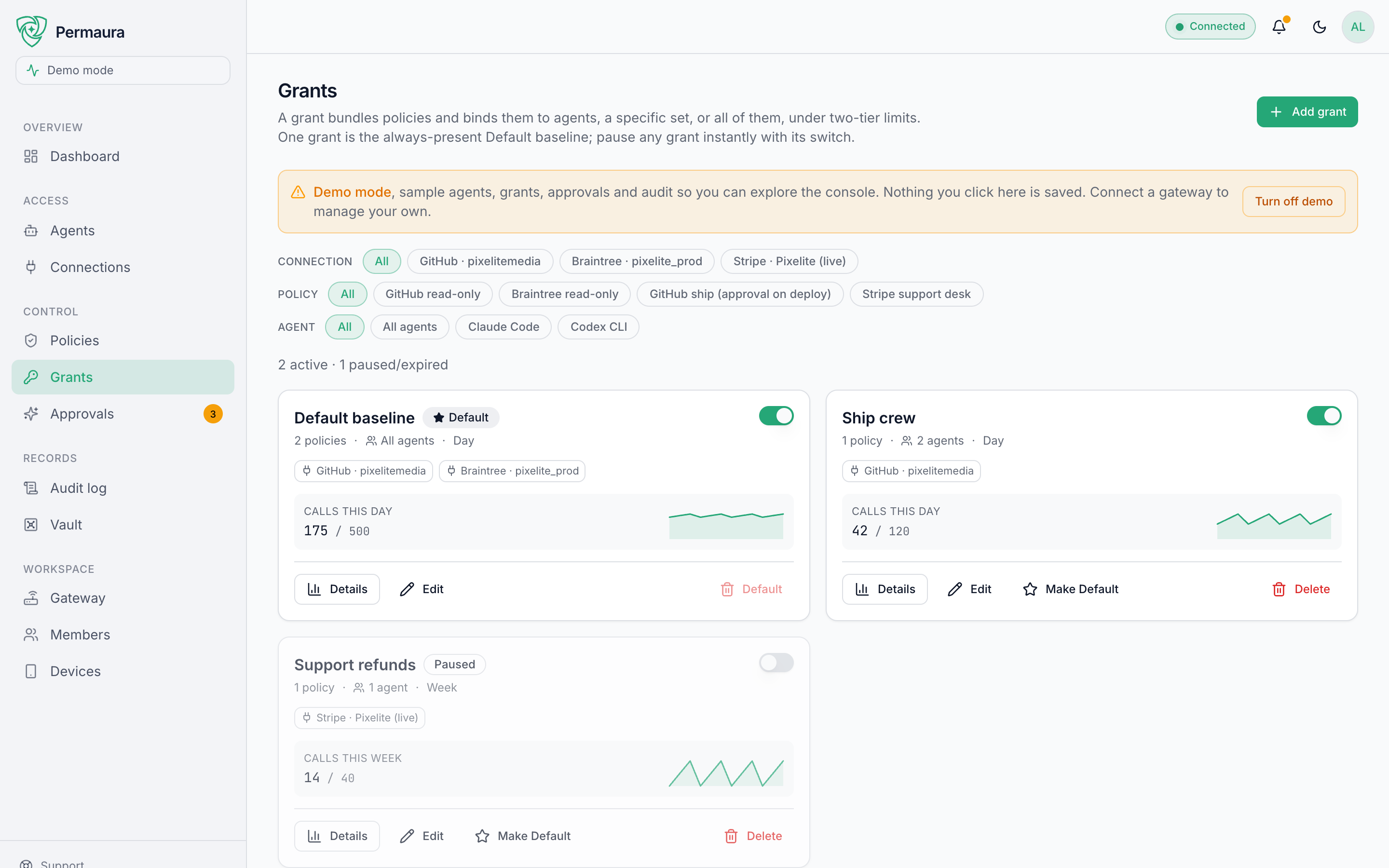
Every account keeps one Default grant that every approved agent inherits, a baseline you can tighten or pause. To delete it, first make another grant the Default (its Make Default action); the current Default itself can't be removed. Layer specific grants on top of it for particular agents or higher-risk connections.
3. Watch it work
Ask your agent to do the thing. On the Dashboard and Audit log you'll see the decision land (allowed, held for approval, or denied), each one hash-chained and signed. If it was denied, the audit entry tells you which rule stopped it, so you can widen the policy or add a grant if that's what you intended.
You've done the whole loop
Connection → agent → policy → grant → action, all audited. From here:
- Add remote access so agents anywhere (including ChatGPT) can reach your gateway.
- Tune approvals for your highest-risk actions.
- Explore the rest of the console in the Console tour.
➡️ Continue to Step 7: Remote access.